What’s it like to let AI install “plug-ins” for your own AI? This time I had Doubao Workspace (Doubao Agent) configure two MCP servers that work great in Claude —
codebase-memory-mcpandcodegraph— as Doubao’s own custom connectors. All I did the whole way was “talk.”
Why use MCP in Doubao Workspace
If you use Claude Code / Cursor day to day, you know the drill: MCP (Model Context Protocol) lets AI call external tools and data sources directly. Two codebase-level MCPs are especially sweet:
- codebase-memory-mcp: indexes your whole codebase into a persistent knowledge graph — functions, classes, call relationships, even cross-service HTTP chains can be resolved in one query. One graph query is worth dozens of greps.
- codegraph: builds a code graph with tree-sitter (functions, classes, call chains, dependencies). In MCP mode, a single
codegraph_explorereturns the relevant symbol source + call paths + blast radius.
After configuring them in Claude, I had a thought: Doubao Workspace has a “connector” system — could these MCPs be wired in too? The answer: yes, and there’s a ready-made “Custom Connector” entry that supports the STDIO type.
Prerequisites: install the two MCPs first
Because I’d configured them for Claude before, they were already on the machine:
| MCP | Version | Install location / command |
|---|---|---|
| codebase-memory-mcp | 0.10.8 | C:\Users\peini\AppData\Local\Programs\codebase-memory-mcp\codebase-memory-mcp.exe (single Go binary, no args) |
| codegraph | 1.5.0 | C:\nvm4w\nodejs\codegraph.cmd (global npm install), started with serve --mcp |
Verify they run:
codegraph --version                    # 1.5.0
codebase-memory-mcp.exe --version      # 0.10.8
Core steps: creating custom connectors in Doubao Workspace
1. Log in, then enter the Connector Center
Open the Doubao Workspace client and log in first. Here’s a trap: when not logged in, the sidebar is stripped down and the full entry isn’t visible; after logging in, item 4 in the sidebar is “Skills · Connectors · Companions” — click into it to reach the “Skills · Connectors” page.
2. Create a new custom connector
Click “+ New” in the top-right, pick “New Custom Connector” from the dropdown, and the form opens.
3. Set the transport type to STDIO
The default is HTTP, but both MCPs are STDIO (local processes communicating over standard input/output) type. Open the transport-type dropdown, confirm HTTP / STDIO are both supported, and choose STDIO. The form switches to: server name, command, arguments, environment variables — very standard.
4. Configure codebase-memory-mcp
| Field | Value |
|---|---|
| Server name | codebase-memory-mcp |
| Transport | STDIO |
| Command | C:\Users\peini\AppData\Local\Programs\codebase-memory-mcp\codebase-memory-mcp.exe |
| Arguments | (none) |
This binary is itself a stdio server — just run it directly, no args needed. After saving, it may first show “connector failed to run”; go to “My Skills” → “Connectors” and click “Restart” — it usually recovers (probably the first launch hadn’t finished initializing).
5. Configure codegraph
| Field | Value |
|---|---|
| Server name | codegraph |
| Transport | STDIO |
| Command | C:\nvm4w\nodejs\codegraph.cmd |
| Arguments | serve, --mcp |
Add serve and --mcp one by one with the “+ Add” button, matching the official MCP config:
{
  "mcpServers": {
    "codegraph": {
      "type": "stdio",
      "command": "codegraph",
      "args": ["serve", "--mcp"]
    }
  }
}
After saving, wait a moment for “Installing” to finish.
6. Confirm the result
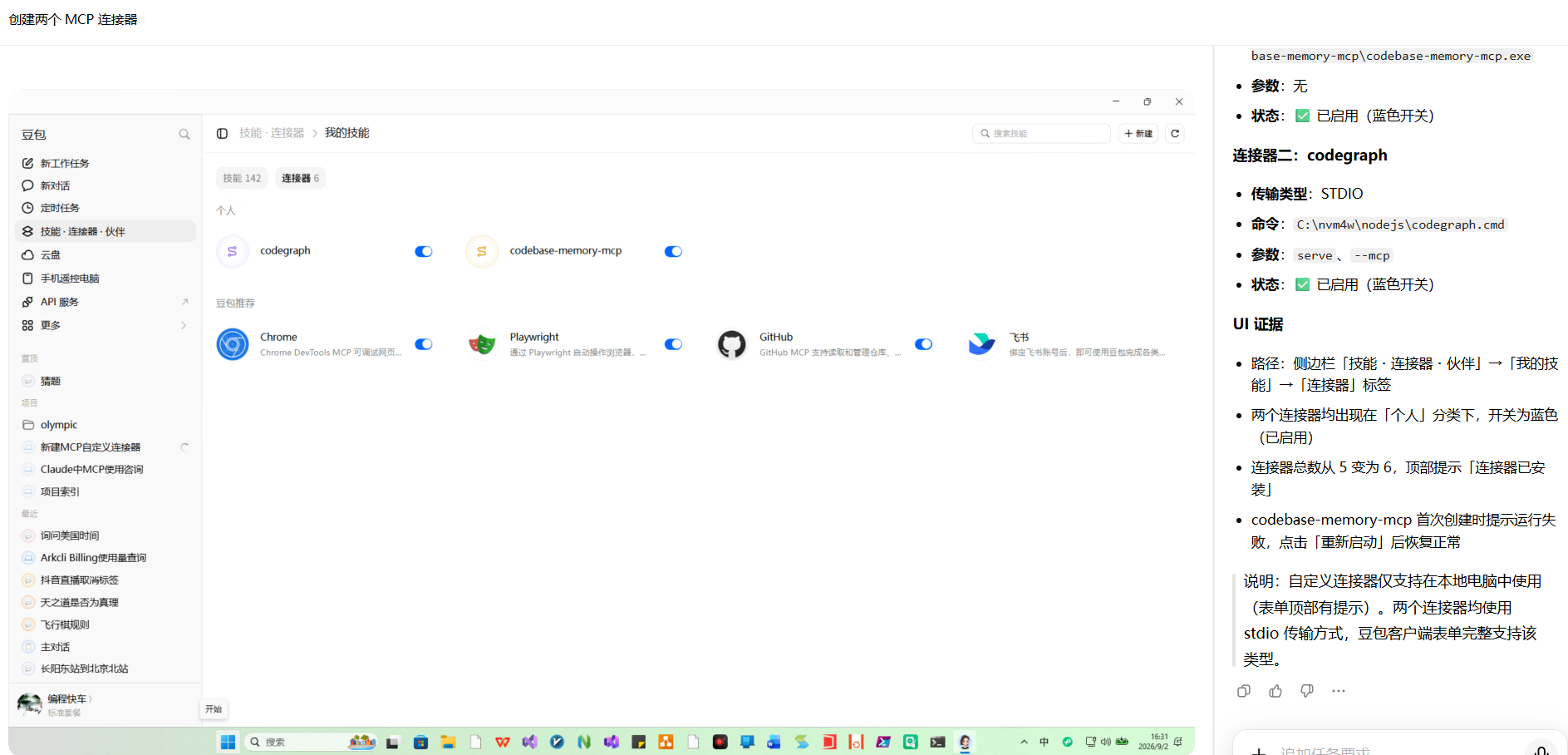
Both connectors appear under “My Skills” → “Connectors”, in the “Personal” category, toggles blue (enabled), with “Connector installed” shown at the top.
Pitfalls and notes
- Always log in first: when logged out, the sidebar is stripped and “Skills · Connectors · Companions” doesn’t show.
- Use full paths for commands whenever possible: the GUI client doesn’t necessarily inherit the shell’s PATH when spawning child processes; absolute paths are the safest.
- Don’t pick the wrong transport type: local-process MCPs take STDIO; only HTTP/SSE services take HTTP.
- Don’t panic at “failed to run”: first-time creation often needs one click of “Restart.”
- Custom connectors are local to this computer: the form clearly states this at the top — they depend on local processes and can’t span cloud machines.
Summary
The whole process involved no config-file editing and no JSON writing — I clicked through the Doubao Workspace client and had both MCPs wired in. For heavy AI-coding users, registering the MCPs you use daily as connectors in Doubao Workspace is like giving Doubao the codebase’s “map + memory”: from then on you can ask it, in natural language, to answer code-structure questions, trace call chains, and the like.
If you also have a few MCPs you use regularly, you can set them up in Doubao Workspace with this exact flow.